Guide: Configure Push-Based Harbor to ECR Mirror
We want to setup a mirror from our local Harbor instance, to 'mirror' (copy images) onto the production registries. To do this, we need to setup an automated rule to allow for pushing images up to ECR with the correct credentials.
To setup the Harbor -> Elastic Container Registry mirror, we need to perform the following steps:
- Provision an ECR registry using ECR Terraform Code
- Setting up a Harbor Replication Rule
Provision an ECR Registry
Clone the oc-infrastructure Repository, and ensure you have the correct credentials to allow for making Infrastructure Operation Changes.
[!NOTE] A more complete overview of setup steps can be found here: ECR Registry
git clone git@github.com:alliedtelesis-labs-nz/oc-infrastructure.git

# If you do not have credentials to do this, ask who ever is maintaining
# your cluster(s)
aws-vault add "${PROFILE_NAME}"
> Enter Access Key ID: # secret value
> Enter Secret Access Key: # secret value
Create the ECR Registry.
cd oc-infrastructure/infrastructure/bootstrap/ecr-mirror/

INFRA_AWS_ENV="sandbox"
PROFILE_NAME="oc-${INFRA_AWS_ENV}-automation"

INFRA_AWS_REGION="us-west-2"
INFRA_AWS_ACCOUNT_ID=`aws-vault exec ${PROFILE_NAME} --no-session -- aws sts get-caller-identity | jq '.Account' | tr -d '"'`

# Initialize state
aws-vault exec ${PROFILE_NAME} --no-session -- terraform init -backend-config=vars/env-${INFRA_AWS_ENV}-tfstate.tfvars

# Plan infrastructure
aws-vault exec ${PROFILE_NAME} --no-session -- terraform plan -var-file=vars/common.tfvars -var-file=vars/env-${INFRA_AWS_ENV}.tfvars

# Apply infrastructure
aws-vault exec ${PROFILE_NAME} --no-session -- terraform apply -var-file=vars/common.tfvars -var-file=vars/env-${INFRA_AWS_ENV}.tfvars

# Destroy infrastructure
# aws-vault exec ${PROFILE_NAME} --no-session -- terraform destroy -var-file=vars/common.tfvars -var-file=vars/env-${INFRA_AWS_ENV}.tfvars
Setting up the Harbor ECR Mirror
Obtaining the Harbor Mirror IAM User Credentials:
The Access ID and Access Secret should be for the `atlnz-harbor-mirrorharbor-replication-
❯ cd oc-infrastructure/infrastructure/bootstrap/ecr-mirror/
❯ aws-vault exec ${PROFILE_NAME} --no-session -- terraform init -backend-config=vars/env-${INFRA_AWS_ENV}-tfstate.tfvars
❯ aws-vault exec "${PROFILE_NAME}" --no-session -- terraform output
ecr_registry_id = "162795121425"
ecr_registry_url = "162795121425.dkr.ecr.ap-northeast-1.amazonaws.com"
ecr_repository_urls = {
  "oneconnect/feature-asset-management-backend" = "162795121425.dkr.ecr.ap-northeast-1.amazonaws.com/oneconnect/feature-asset-management-backend"
  "oneconnect/feature-device-gui-backend" = "162795121425.dkr.ecr.ap-northeast-1.amazonaws.com/oneconnect/feature-device-gui-backend"
  "oneconnect/feature-flag-backend" = "162795121425.dkr.ecr.ap-northeast-1.amazonaws.com/oneconnect/feature-flag-backend"
  "oneconnect/feature-organisation-backend" = "162795121425.dkr.ecr.ap-northeast-1.amazonaws.com/oneconnect/feature-organisation-backend"
  "oneconnect/feature-user-backend" = "162795121425.dkr.ecr.ap-northeast-1.amazonaws.com/oneconnect/feature-user-backend"
  "oneconnect/partner-conference-portal" = "162795121425.dkr.ecr.ap-northeast-1.amazonaws.com/oneconnect/partner-conference-portal"
  "oneconnect/portal" = "162795121425.dkr.ecr.ap-northeast-1.amazonaws.com/oneconnect/portal"
}
iam_user_arn = "arn:aws:iam::162795121425:user/atlnz-harbor-mirrorharbor-replication-demo"
iam_user_name = "atlnz-harbor-mirrorharbor-replication-demo"
region = "ap-northeast-1"
To obtain the Access Key from AWS, we need to find the user with the iam_user_name from the terraform output command.
We then need to do the following:
- Login to your IAM user.
- Navigate to IAM in AWS via the Search
- Locate the IAM user from
terraform outputresult. - Click "Add Access Key".
- Select "command line interface", check the confirmation box, and click "next".
- The description tag can be left blank, click "create access key".
- Copy the access key id (called "access key") and the access key secret (called secret access key) somewhere safe, ideally 1password.
- Click "done", we will use these to configure our Registry and Replication Rules below.
Setting up Harbor to ECR Mirror:
- Login to Harbor, and navigate to
Administration->Registries.- Note, this requires admin priviledges on the Harbor Instance.
- Click on
+ New Endpointto create a new registry. - Fill out the details as seen below.
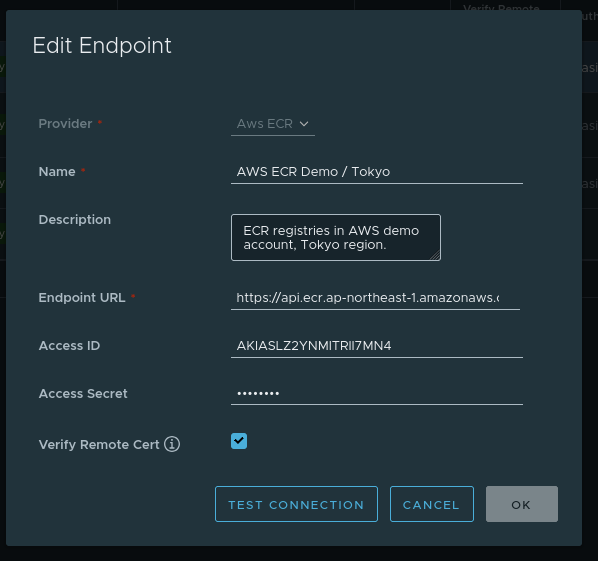
- Setup a replication rule to replicate data from Harbor to our new endpoint.
- Navigate to
Administration->Replication->+ New Replication Rule.
- Navigate to
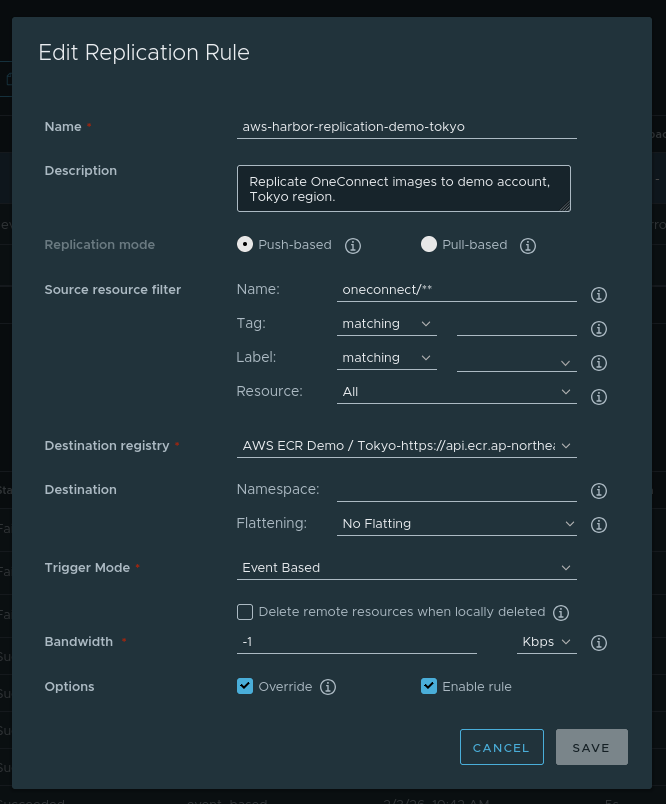
We want to setup a Push-Based replication rule that matches the oneconnect/** images, and
pushes them up to our endpoint we created earlier. This can be configured via the below settings:
This should use No Flattening and Event Based triggers as the default options, as seen in the below
image.
We have now setup an automated Harbor -> ECR mirror.