Cognito Workflow
Test users
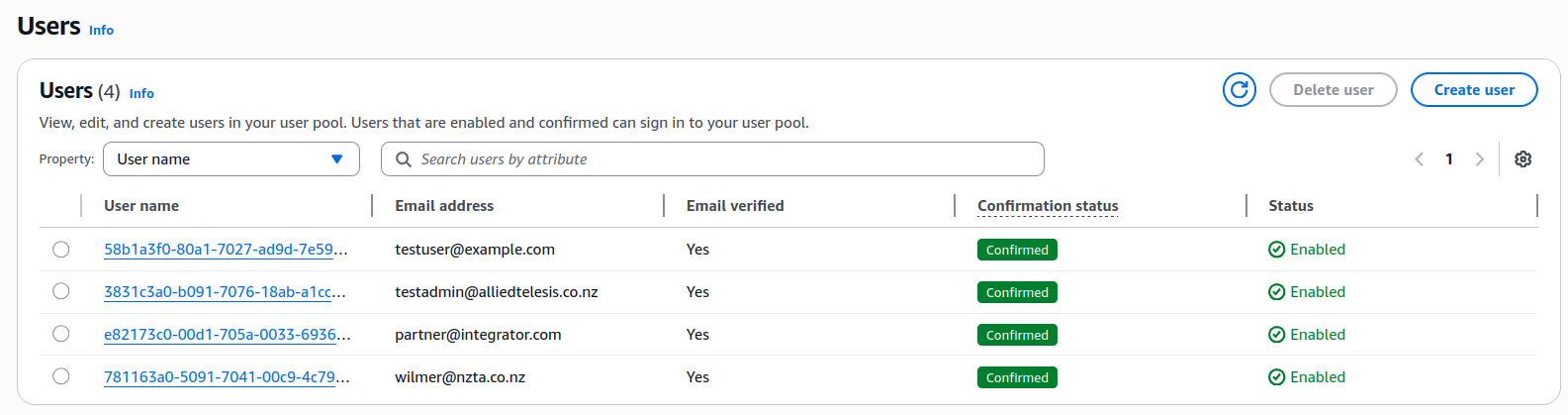
The following test users are available:
- testuser@example.com — Admin user
- testadmin@alliedtelesis.co.nz — Admin user
- partner@intergrator.com — Partner user
- wilmer@nzta.co.nz — Customer user
Create a new Cognito user pool
Manually create a Cognito user pool
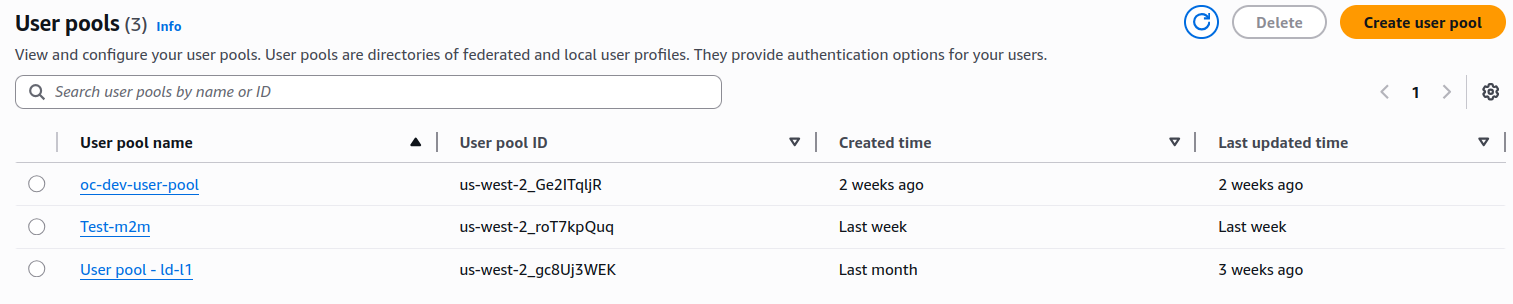
Log into AWS, search for Cognito in the search bar, click User pools in the side panel, then click Create user pool.
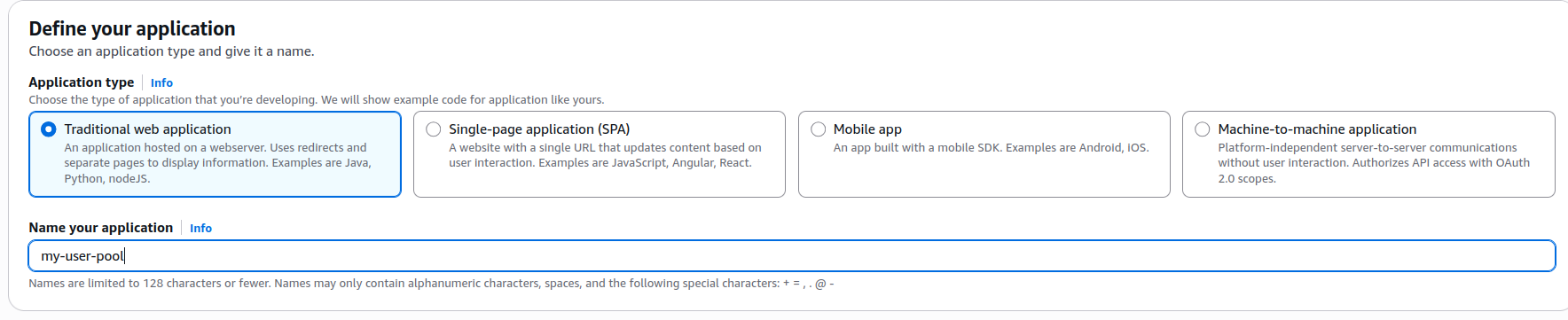
Cognito will prompt you to configure an application. Select Traditional web application.
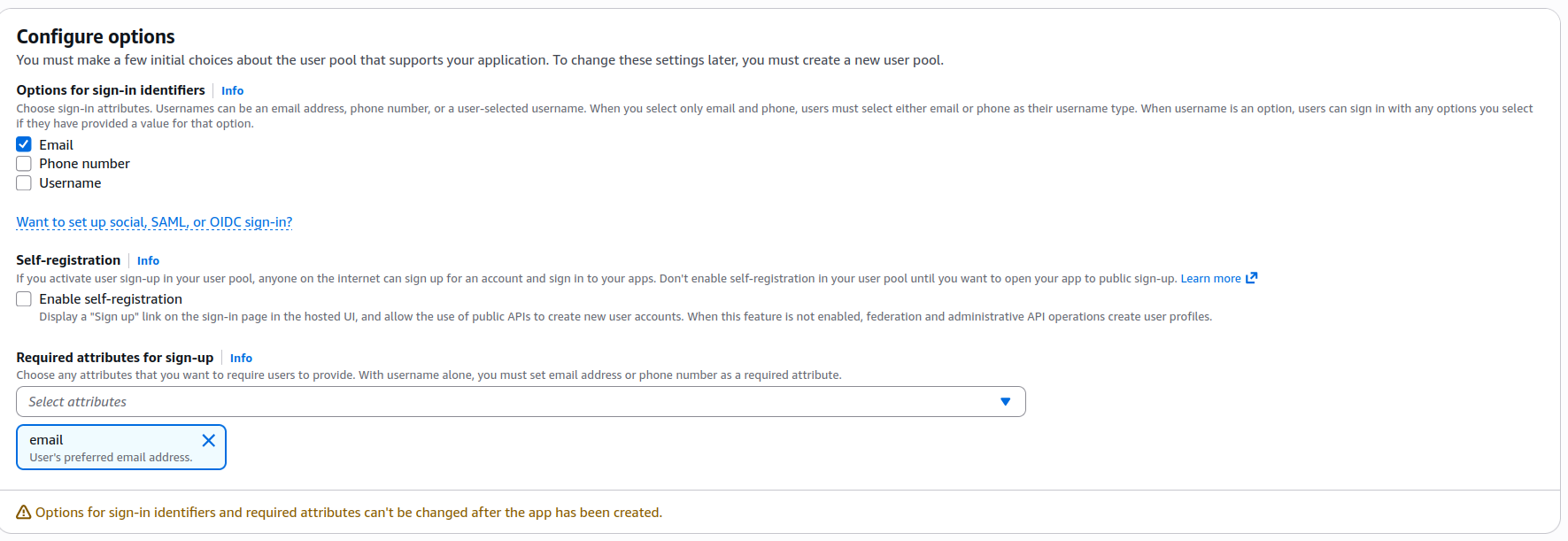
Set up the Cognito app client
When you create a new Cognito user pool, AWS creates a default app client. Edit the app client's login pages and add the following callback URLs. If you point multiple environments to a single user pool, add a URL for each environment.
https://oneconnect.{your-env}.alliedtelesistest.com
https://oneconnect.{your-env}.alliedtelesistest.com/oauth2/callback
https://oneconnect.{your-env}.alliedtelesistest.com/oauth2/idpresponse
Add the following allowed sign-out URLs. If you point multiple environments to a single user pool, add a sign-out URL for each environment.
After creating the user pool and app client
Sync the client ID and client secret to SOPS and ArgoCD.
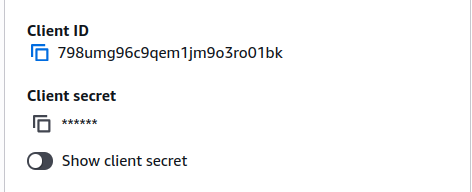
Copy the client ID and client secret
Copy your Client ID and Client secret.
Add the client ID and client secret to SOPS
Add the client ID and client secret as secrets in oc-infrastructure. Follow Using SOPS — Secrets Management for the required changes.
Query the Cognito well-known endpoints
Run the following command to retrieve the OpenID configuration for your user pool:
curl -L https://cognito-idp.{region}.amazonaws.com/{userPoolId}/.well-known/openid-configuration | jq .
The response looks like this:
{
  "authorization_endpoint": "https://auth2.alliedtelesistest.com/oauth2/authorize",
  "end_session_endpoint": "https://auth2.alliedtelesistest.com/logout",
  "id_token_signing_alg_values_supported": [
    "RS256"
  ],
  "issuer": "https://cognito-idp.us-west-2.amazonaws.com/us-west-2_Ge2ITqljR",
  "jwks_uri": "https://cognito-idp.us-west-2.amazonaws.com/us-west-2_Ge2ITqljR/.well-known/jwks.json",
  "response_types_supported": [
    "code",
    "token"
  ],
  "revocation_endpoint": "https://auth2.alliedtelesistest.com/oauth2/revoke",
  "scopes_supported": [
    "openid",
    "email",
    "phone",
    "profile"
  ],
  "subject_types_supported": [
    "public"
  ],
  "token_endpoint": "https://auth2.alliedtelesistest.com/oauth2/token",
  "token_endpoint_auth_methods_supported": [
    "client_secret_basic",
    "client_secret_post"
  ],
  "userinfo_endpoint": "https://auth2.alliedtelesistest.com/oauth2/userInfo"
}
Navigate to the argocd-oc-apps repo and change into your environment directory (for example dev, demo, or a new environment name). Open environment-config.yaml and replace the following values with those from the response above:
OIDC_HOST: "cognito-idp.us-west-2.amazonaws.com/{user-pool-id}"
OIDC_DNS_HOST: "https://{your-url}"
OIDC_ISSUER_URL: "https://cognito-idp.us-west-2.amazonaws.com/{user-pool-id}"
OIDC_JWKS_URL: "https://{your-url}/{user-pool-id}/.well-known/jwks.json"
OIDC_TOKEN_URL: "https://{your-url}/oauth2/token"
OIDC_USERINFO_URL: "https://{your-url}/oauth2/userInfo"
OIDC_AUTH_PATH: "https://{your-url}/oauth2/authorize"

# Replace with your client ID
OAUTH2_CLIENT_ID: {your-cognito-client-id}
Creating users in Cognito
Manually create a user
Log into AWS, open your user pool, and click Create user.
Tick Mark email address as verified.
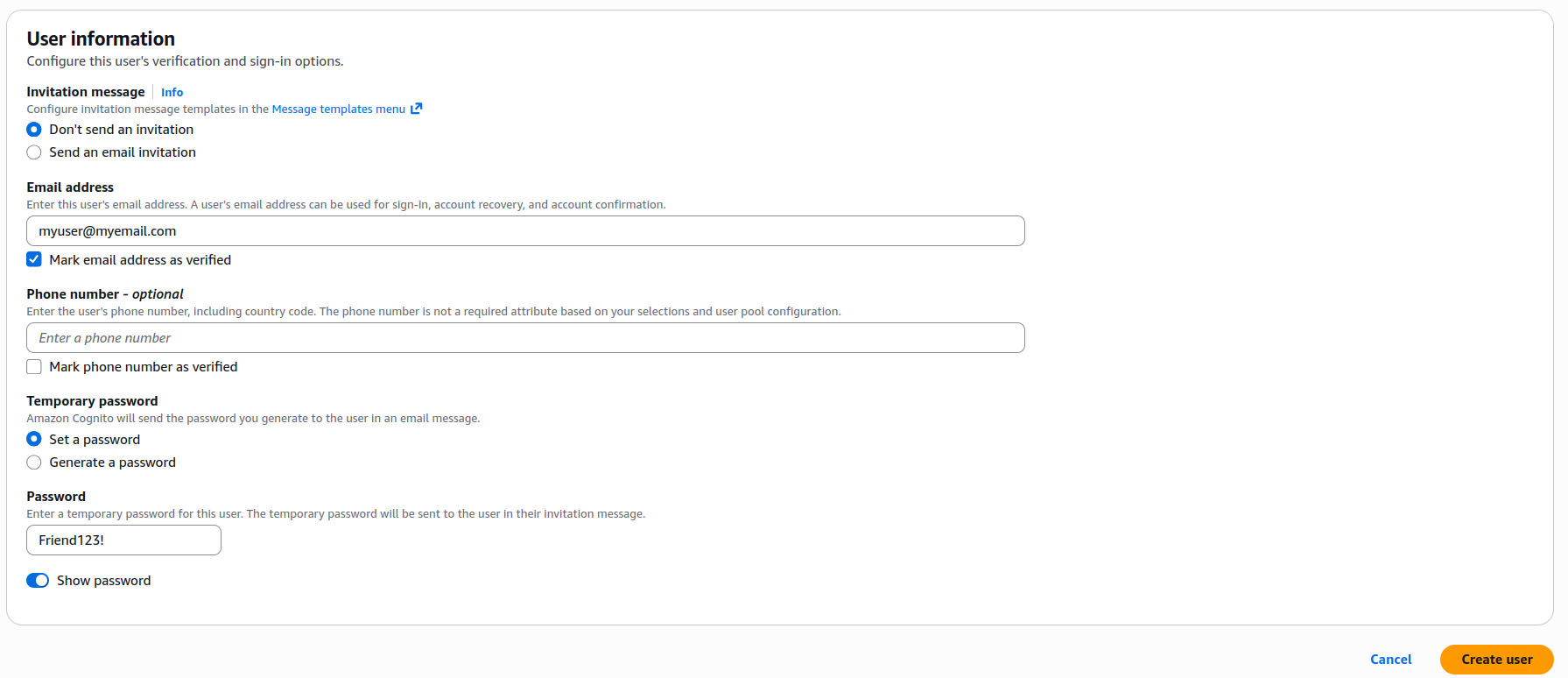
The new user appears in your user pool. On first login, Cognito prompts the user to change their password; you can set any initial password when creating the user.
